Samsung Samsung SmartThings Wifi (ET-WV525)
Combining whole-home mesh Wi-Fi with Zigbee and Z-Wave smart home automation hub
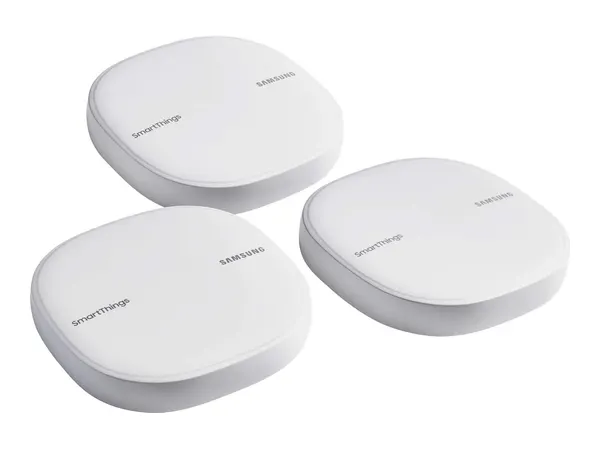
Technical specifications
SmartThings Wifi Mesh| Manufacturer | Samsung |
|---|---|
| Product Series | SmartThings Wifi Mesh |
| Device Class / Category | Mesh |
| Wireless Standard | Wi-Fi 5 (802.11ac) |
| Speed Rating | AC1300 Whole Home Mesh + SmartThings Hub |
| Ethernet & Fiber Ports | 2x 1G Gigabit Ethernet Ports (1 WAN, 1 LAN) |
| Routing / Firewall Throughput | 940 Mbps Line Rate |
| Default Gateway URL | http://192.168.1.1 ↗ |
| Operating System / Firmware | SmartThings OS / Plume AI |
How to log in to your Samsung Samsung SmartThings Wifi (ET-WV525)
- 1 Connect Your Device: Plug your PC into any LAN port on the Samsung Samsung SmartThings Wifi (ET-WV525) using an Ethernet cable, or connect to the default Wi-Fi SSID printed on the router label.
-
2
Navigate to Gateway IP: Launch your web browser and enter
http://192.168.1.1into the address bar. - 3 Enter Factory Credentials: Enter username "admin" and password "Set via SmartThings App", then click Login.
- 4 Configure Security & Password: Follow the on-screen Quick Setup wizard to customize your Wi-Fi SSID, set WPA3/WPA2-AES encryption, and establish a new master administrator password.